Amlogic USB Burning Tool V3.3.1 Free Download for Windows Latest Version [2026]
If your Amlogic Android TV box is stuck on the boot logo, has corrupted firmware, or won’t start after an update, Amlogic USB Burning Tool helps you install, upgrade, or restore compatible firmware on supported Amlogic-powered devices. It supports firmware recovery workflows for compatible Android TV boxes, including selected X96 Mini, X96 Max, and X96 Max Plus models, depending on hardware and firmware compatibility.
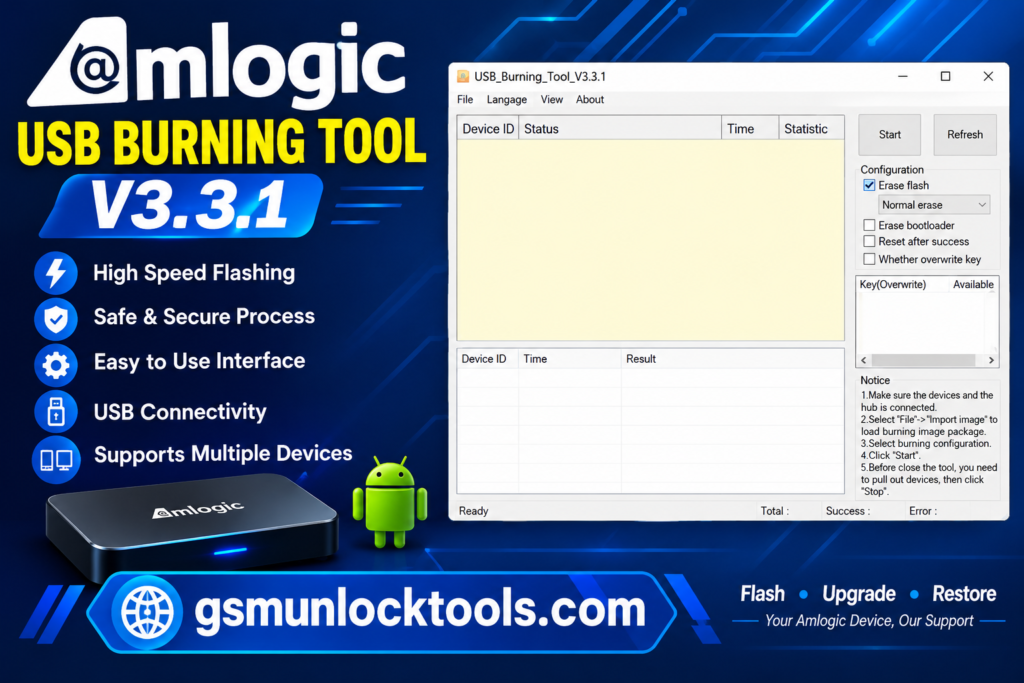
What is the Amlogic USB Burning Tool?
Amlogic USB Burning Tool is a Windows-based firmware flashing tool. It installs, upgrades, or restores firmware on compatible Amlogic-powered Android TV boxes and multimedia devices. It helps users troubleshoot common software problems, such as boot loops, failed firmware updates, corrupted system software, and devices stuck on the startup logo. The tool works with compatible Amlogic firmware images and communicates with supported devices via USB using the appropriate drivers and flashing mode.
Key Features of the Amlogic USB Burning Tool
Firmware Flashing
The tool enables users to flash compatible firmware images onto supported Amlogic devices. It can reinstall stock firmware to help restore normal operation after certain software failures.
Android TV Box Recovery
Amlogic USB Burning Tool can help recover devices affected by failed firmware updates, boot loops, or corrupted system software.
Firmware Upgrade and Downgrade
The utility can install compatible firmware versions when supported by the device. Downgrading is not always possible because of bootloader restrictions, firmware dependencies, or security requirements.
Firmware Image Verification
The application performs firmware image checks during supported flashing workflows. Users should still verify that the firmware comes from a trusted source and matches the device model.
What’s new in the Amlogic USB Burning Tool?
- Improved Amlogic Chipset Compatibility
- Enhanced Firmware Flashing Support
- Updated Burning-Key Configuration Options
- RPMB Configuration Update Support
- DDR Erase Configuration Options
- Improved USB Device Connectivity
- Enhanced Firmware Recovery Capabilities
System Requirements
| Requirement | Specification |
| OS | Compatible Windows installation |
| RAM | 2 GB or more recommended |
| Storage | Enough space for the installer and firmware image |
| USB drivers | Compatible Amlogic USB drivers |
| USB connection | Working USB port and suitable data cable |
| Firmware | Compatible image for the exact device |
| Device hardware | Supported Amlogic-powered device |
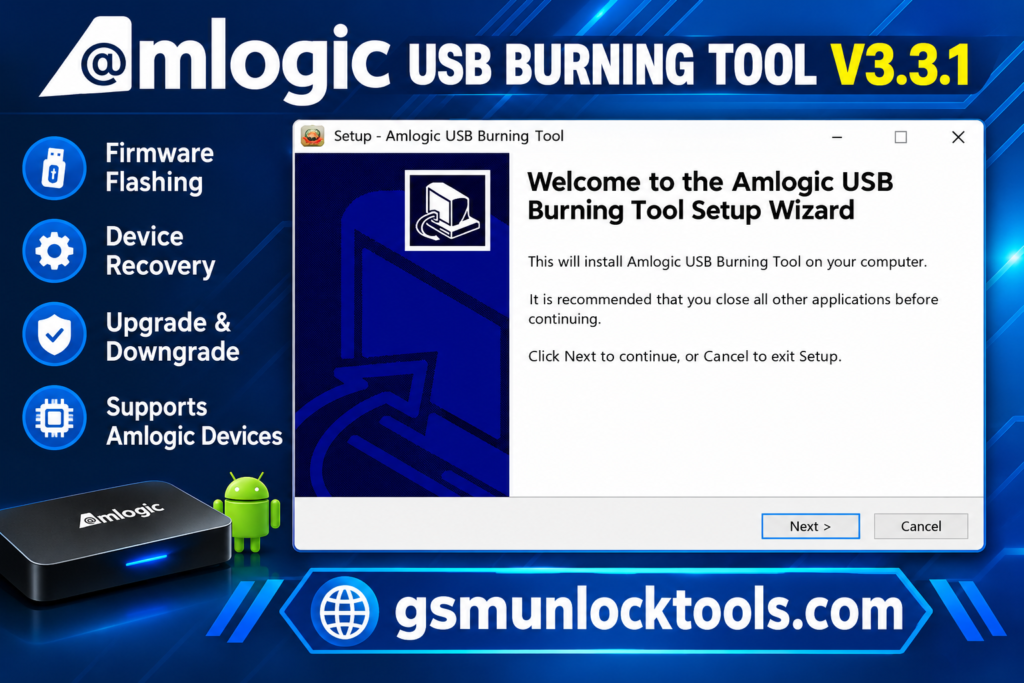
How to Download & Install the Amlogic USB Burning Tool?
- Download the Amlogic USB Burning Tool from a trusted source.
- Click on the download link.
- Wait until the download is complete.
- Extract all files to your Desktop.
- Open the extracted folder.
- Enable USB debugging when using ADB functions.
- Open the downloaded tool.
- Run the tool as admin.
- The tool will open on your PC screen.
- Enjoy using the tool.
Pros & Cons
| Pros | Cons |
| Free firmware flashing utility | Designed for compatible Amlogic devices |
| Helps reinstall supported firmware images | Requires the correct firmware package |
| Can assist with certain boot failures | Incorrect flashing can make a device unusable |
| Supports selected newer Amlogic chipsets | USB drivers and a suitable connection may be required |
| Provides firmware and flash configuration options | Some operations can erase data |
| Useful for device servicing and troubleshooting | Not every TV box supports the same tool version |
Also check: Huawei FRP Tool v1.0 Free Download Fastboot Mode Latest Version [2026]
Conclusion
Amlogic USB Burning Tool is a useful Windows tool. It is used for flashing, upgrading, and restoring compatible firmware on supported Amlogic-powered Android TV boxes and multimedia devices. It can help resolve certain software-related issues, including boot loops, corrupted firmware, and failed updates, when the correct firmware image and flashing method are available.
FAQ’s
Can Amlogic USB Burning Tool fix a bricked TV box?
It can help recover certain software-bricked devices if the hardware still supports the required flashing mode and a compatible firmware image is available. Hardware failures require different repair methods.
Does Amlogic USB Burning Tool erase data?
Yes, flashing firmware or selecting erase options can delete stored data and configuration. Back up important information whenever possible before proceeding.
Can I use firmware from another Amlogic TV box?
No, you should not assume that firmware is interchangeable. Different devices can have different memory layouts, bootloaders, Wi-Fi modules, and hardware configurations, even when they share a chipset.
Does Amlogic USB Burning Tool require an internet connection?
The local firmware flashing process generally does not require an internet connection. Internet access may be needed to obtain files or documentation.
Is Amlogic USB Burning Tool safe to use?
The utility can be useful when obtained from a trustworthy source and used with compatible firmware. Incorrect images, unverified installers, and destructive configuration options can cause data loss or device failure.
![TFM Tool Pro v2.3.0: Download Latest Version [2026]](https://gsmunlocktools.com/wp-content/uploads/2026/08/tfm-tool-pro-v2-3-0-768x576.png)
One Comment