Download Android Multi Tool v1.3.5.8 Latest Setup for Windows 2026
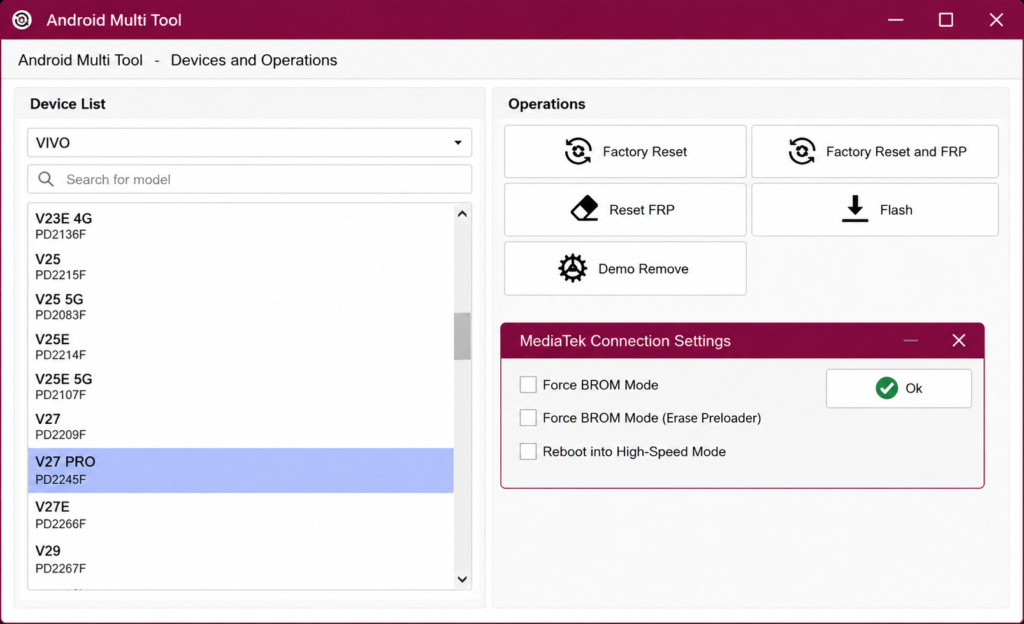
Android Multi Tool is a small application for the Windows operating system that enables the management of compatible Android devices using ADB and Fastboot tools. It contains important features, including device information, reboot, reset, and others. This tool is made for technicians, developers, and any Android users.
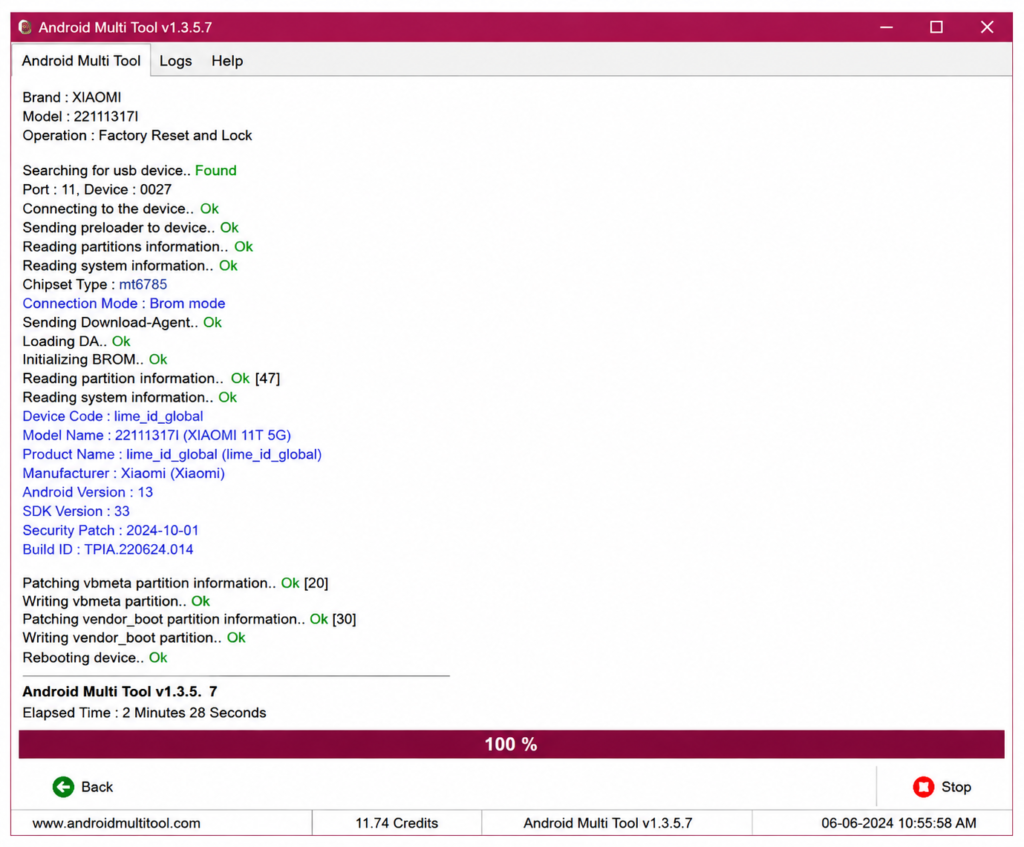
What is Android Multi Tool?
Android Multi Tool is a utility for the Windows operating system that lets you manage your compatible Android devices with the help of ADB and Fastboot. The tool works with a USB cable, the corresponding ADB or Fastboot, and USB Debugging. Suitable for any user, from a technician to a beginner.
Features of Android Multi Tool
Screen Unlock
Certain applications and features assist in retaining the screen lock on phones supporting screen locks. This depends on the phone model and the Android OS installed.
Factory Reset
This function helps reset the device and return it to factory settings. It usually clears any installed applications and user data.
Hard Reset
There are also reset functions in Android Multi Tool that help recover the device from software problems or when the screen unlock credentials are forgotten.
ADB Commands
It is possible to use ADB commands through this utility to connect the device via USB.
Fastboot Functionality
When your device supports fastboot mode, this application will allow you to send maintenance commands before booting Android.
Bootloader Features
If your device supports bootloader mode, this software can work with the bootloader for maintenance operations.
Wipe Data
With Android Multi Tool, it is possible to wipe user data if needed. It wipes files beforehand.
Reboot Options
There are different ways of rebooting your device into normal mode, recovery mode, and bootloader mode. Small Size and Lightweight Program
The installation is small, lightweight, and fast.
How to Download Android Multi Tool?
It is easy to download Android Multi Tool in just a few minutes.
- Access the download website or software provider.
- Identify the latest version of Android Multi Tool.
- Click on Download to download the zipped file.
- Allow the download process to complete.
- Unzip the downloaded file and get ready for installation.
Also Check: TSM Tool Pro v2.4.1 Download 2026 – Complete Android Repair & Unlock Solution
How to Install Android Multi Tool
- Install the required driver for your Android device.
- Use Developer Options on your Android mobile device and turn on USB debugging mode.
- Run Android Multi Tool with administrative privileges to avoid any permission issues.
How to Use Android Multi Tool
- Connect your Android mobile device to your computer with the help of a suitable USB cable.
- Choose the necessary option from the menu application.
- Start the necessary procedure and wait until it ends.
- After the process, reboot your gadget if necessary.
Advantages and Disadvantages of Android Multi-Tool
Advantages
- Free tool to use
- Lightweight program
- User friendly
- Compatible with many Android brands
- Faster ADB connection
- Maintenance options available
- Quick installation
Disadvantages
- Only works in Windows
- Certain features rely on device compatibility
- Needs USB drivers
- Advanced features might not work in all phones
Safety Precautions before Using the Android Multi-Tool
Using Android Multi Tool with caution will minimize the chances of data loss and connectivity issues.
Create a Backup of Data
Remember to back up your important data before any reset procedure.
Install Official USB Drivers
Make use of the official USB drivers for your smartphone to increase connectivity.
Download the Right Version
Make sure you download the latest version of Android Multi Tool compatible with your Windows operating system.
Charge your Phone
Your Android device should be charged to at least 50%.
Typical Problems and Their Solutions
Some problems may arise when using Android Multi Tool.
Device Not Detected
- USB Debugging should be activated.
- Install proper USB drivers.
- Use a different USB cable or USB port.
- Reboot both the phone and PC.
ADB Isn’t Working
- Check if USB Debugging is active.
- Redownload ADB drivers.
- Start the ADB service again.
Bootloop Problem
- Use Recovery mode.
- Do a factory reset if needed.
- Reinstall the official firmware if required.
Permission Error
- Run the program as Administrator.
- Approve the USB Debugging permission on your Android.
Android Multi Tool vs Other Android Tools
| Feature | Android Multi Tool | ADB | SP Flash Tool | Odin Tool |
| Interface | Easy-to-use graphical interface | Command-line interface | Graphical interface | Graphical interface |
| Primary Purpose | Android repair, FRP reset, unlocking, flashing, and maintenance | Advanced device management and debugging | Flashing firmware on MediaTek devices | Flashing firmware on Samsung devices |
| Supported Devices | Multiple Android brands | Most Android devices with USB debugging enabled | MediaTek (MTK) devices only | Samsung devices only |
| Ease of Use | Beginner-friendly | Best for advanced users | Moderate | Beginner-friendly |
| Key Functions | Flash, Unlock, FRP Reset, Factory Reset, Device Maintenance | ADB commands, file transfer, app management, and debugging | Firmware flashing, unbricking, and software repair | Samsung firmware flashing, software updates, recovery |
| Best For | All-in-one Android servicing | Developers and advanced users | MTK firmware flashing | Samsung firmware installation and repair |
What’s new in the Android Multi Tool?
Better device detection
- Improved Windows compatibility
- ADB components update
- Improved performance
Bug Fixes
- Fixed connection problems
- Improved software stability
- Fix for interface bugs
Fast startup
- Improved memory management
- Enhanced device communication
- Better responsiveness
Conclusion
The Android Multi Tool is a small and convenient utility for Windows that will help you manage your Android devices using ADB and Fastboot in a rather straightforward way. The tool provides such functions as device info, rebooting, factory reset, and other maintenance options. The program might not be compatible with some manufacturers and versions of Android, but it still serves as an effective solution for technicians and developers. To download the latest version of the app and install the appropriate USB drivers.
FAQ’s
Does It Have a Screen Lock Removal Feature?
It offers maintenance options for compatible devices depending on the device model, Android version, and its security settings.
Does It Have FRP Unlocking Features?
Some versions might have FRP unlock features that will work on devices and Android versions.
Does It Work without USB Debugging?
Most ADB commands will require USB Debugging Mode to run, while fastboot options do not require it if the device supports Fastboot mode.
Does It Support Windows 11 OS?
Yes. Android Multi Tool works on Windows 11 as well as other supported Windows versions.
Is an Internet Connection Necessary?
An internet connection will be required only for downloading this tool or updating packages.
![Android Win Tool v2.1.8: Download the Latest Version for Windows [2026]](https://gsmunlocktools.com/wp-content/uploads/2026/08/android-win-tool-v2-1-8-768x576.png)