BFT Tool v1.8: The Ultimate Guide to Android Software Repair & Servicing
Android phone servicing is not always about replacing a damaged component. Many devices develop software-related problems that can make them slow, unstable, stuck on the logo, unable to boot, or inaccessible because of security restrictions. For mobile technicians, identifying the actual software problem before performing a repair is an important part of the job.
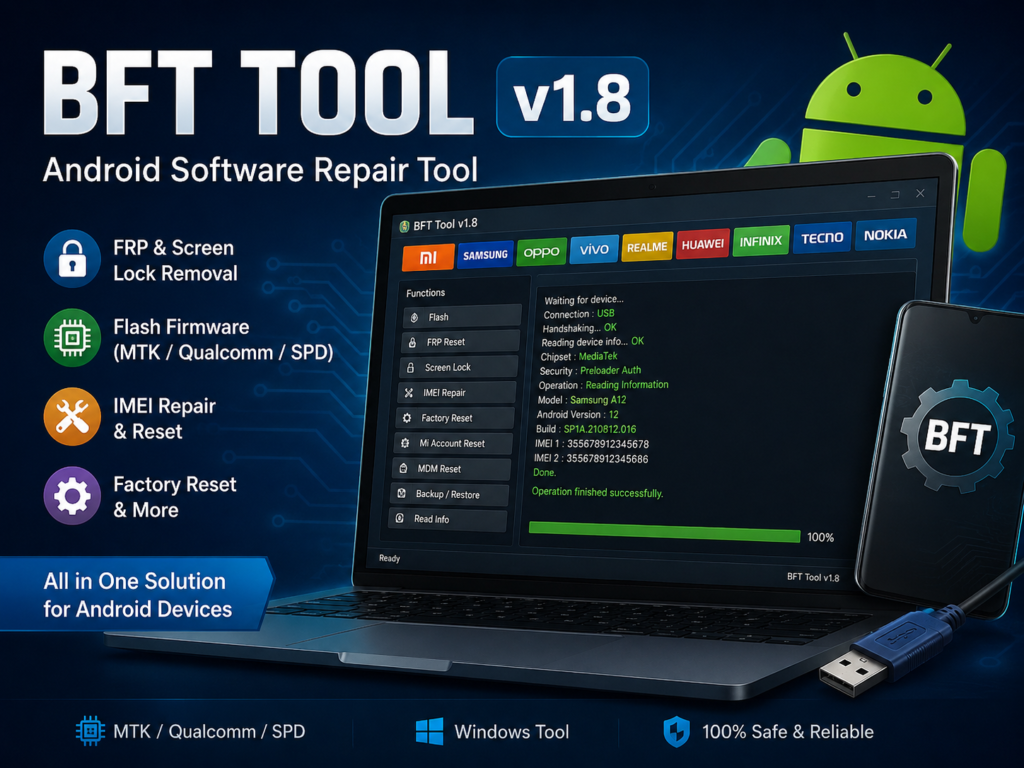
This is where BFT Tool v1.8 can become useful. Instead of depending on different utilities for every chipset or repair situation, technicians can use BFT as a multi-purpose Windows servicing application for supported Android devices.
The tool is designed around several common servicing environments, including MediaTek (MTK), Qualcomm, and SPD/Unisoc devices. Depending on the phone model and security state, it can provide functions related to firmware servicing, device information, reset operations, and other software-level procedures.
If you are looking for the complete setup, features, supported platforms, and installation information, see our BFT Tool v1.8 Download guide.
Why Android Software Repair Can Be Complicated
Modern Android smartphones do not all use the same hardware platform or servicing method. Two phones from different brands may require completely different procedures even when they have a similar software problem.
For example, one device may use a MediaTek chipset while another uses Qualcomm or Unisoc hardware. Their firmware structures, connection modes, loaders, drivers, and communication methods can therefore be different.
A technician normally needs to determine several things before starting:
- Which chipset does the device use
- Whether the phone can boot normally
- Which connection mode is available
- Whether the correct USB driver is installed
- Which firmware package belongs to the exact model
- Whether the problem is related to software, security, or hardware
- Whether important user or security data needs to be preserved
A wrong operation can sometimes make a software problem more difficult to recover from. Therefore, understanding the device before using a servicing function is just as important as having the right tool.
Where BFT Tool v1.8 Fits Into a Technician’s Workflow
BFT Tool v1.8 can be viewed as a general-purpose servicing utility rather than a solution for only one specific problem.
A typical repair workflow can start with identifying the phone and checking its current condition. After that, the technician can select an appropriate operation based on the chipset and available connection mode.
For example, a device that is stuck at the boot logo may require software diagnosis and firmware servicing, while a device that boots normally but has a configuration or security-related issue may require a completely different procedure.
This approach helps technicians avoid treating every Android problem in the same way.
MTK, Qualcomm and SPD Require Different Approaches
One of the useful aspects of BFT is its multi-chipset orientation.
MediaTek Devices
MediaTek phones can expose different servicing modes depending on the device generation and security implementation. Technicians may encounter BROM, Preloader, Meta, or other supported communication modes.
The correct mode can determine which operations are available. USB drivers and the correct firmware files are also important when working with MTK devices.
Qualcomm Devices
Qualcomm smartphones commonly use specialized emergency or download environments for deeper software servicing. Depending on the model, technicians may work with firmware components and supported loaders.
Because Qualcomm firmware packages can contain multiple files and configuration components, selecting the correct firmware for the exact model and region is essential.
SPD / Unisoc Devices
Unisoc-powered smartphones also have their own flashing environment and firmware formats. Supported devices may use PAC or configuration-based firmware packages.
This is particularly useful for technicians who regularly work with lower-cost Android phones and brands using Unisoc platforms.
A Better Way to Diagnose a Software Problem
One of the biggest mistakes in mobile servicing is immediately formatting or flashing a device without first identifying the problem.
A better approach is to follow a simple diagnostic sequence.
Identify the Device
Record the brand, model number, chipset, and available software information.
Do not rely only on the phone’s marketing name. Different variants can use different hardware and firmware.
Check the Current Condition
Determine whether the phone:
- Boots into Android
- Is stuck on the logo
- Enters recovery mode
- Enter fastboot or another supported mode
- Is detected by the computer
- Shows signs of previous software modification
This information can help determine the appropriate servicing path.
Install the Correct Drivers
Windows must be able to communicate with the device before many servicing operations can work correctly.
Depending on the phone, this may require Android USB, MediaTek, Qualcomm, or Unisoc-related drivers.
If the device repeatedly connects and disconnects, appears as an unknown device, or is not detected at all, checking the driver installation should be one of the first troubleshooting steps.
Verify the Firmware
Firmware selection is extremely important.
A package intended for a different model, hardware revision, region, or storage configuration may not be appropriate for the device.
Before flashing, verify the model and firmware information carefully.
Choose the Least Destructive Operation
Not every problem requires a complete firmware flash.
If the issue can be resolved through a supported reset, configuration, or repair operation, performing unnecessary firmware changes may increase the risk of complications.
Why Firmware Verification Matters
Firmware flashing is one of the most important areas of Android servicing, but it is also an area where mistakes can have serious consequences.
A technician should verify:
Device model → chipset → firmware version → region/build → required files → connection mode
This simple checklist can prevent many avoidable errors.
For example, a firmware package may look correct because the phone brand and model family are the same, but a slightly different hardware variant can make the package unsuitable.
Always keep a backup of important information when possible and follow the manufacturer’s or firmware provider’s instructions for the exact device.
Understanding FRP Before Performing a Reset
Factory Reset Protection, commonly known as FRP, is an Android security feature designed to protect a device after an unauthorized factory reset.
This means that simply resetting a phone does not necessarily remove the previously associated Google account requirement.
For legitimate servicing, technicians may encounter FRP while working on devices that have been reset during repair.
The important point is that FRP operations should only be performed on devices where the owner has authorized the repair and can establish legitimate ownership.
BFT includes supported FRP-related servicing functions, but availability can vary according to the model, Android version, chipset, security patch, and connection method.
IMEI Repair Requires Extra Care
IMEI-related servicing is another area where technicians need to work carefully.
The IMEI is an important device identifier used by cellular networks. Changing or repairing an IMEI can be regulated by local laws and network policies.
For legitimate repair situations, such as restoring device information after authorized board-level servicing, technicians should use the correct procedures and comply with applicable regulations.
BFT provides IMEI-related functions for supported devices, but the availability and behavior of these functions can vary between models and chipsets.
BFT Tool and Multi-Brand Servicing
A major challenge for mobile technicians is dealing with different manufacturers every day.
A single repair shop may receive phones from brands such as:
- Samsung
- Xiaomi
- Redmi
- POCO
- Oppo
- Vivo
- Realme
- Infinix
- Tecno
- itel
- Motorola
- Nokia
- Huawei
- ZTE
The important factor is not simply the brand name. The actual servicing method depends heavily on the device’s chipset, software version, security implementation, and available connection mode.
This is why a multi-platform utility can be useful as part of a technician’s wider software toolkit.
When the BFT Tool v1.8 May Not Be Enough
No universal servicing tool supports every Android model or every security version.
There can be situations where BFT does not detect a particular device, does not support its security level, or does not provide the required operation.
In such cases, technicians may need:
- Official firmware tools
- Manufacturer-specific utilities
- Correct chipset drivers
- Service firmware
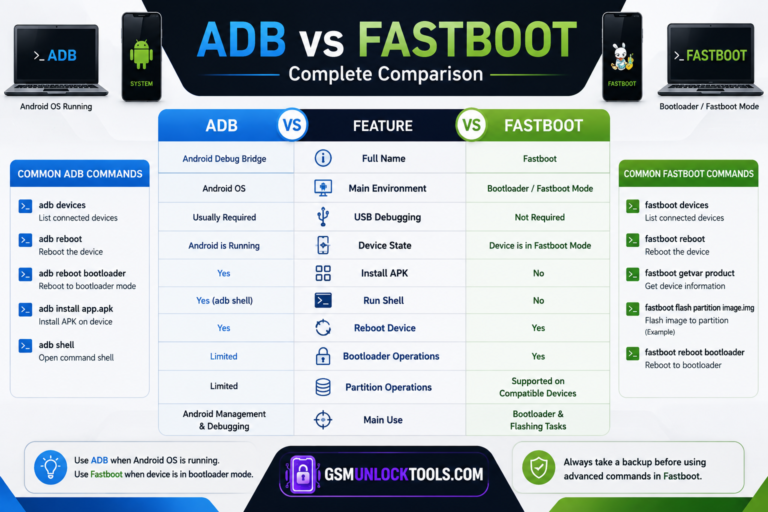
- Recovery or fastboot tools
- Device-specific diagnostic methods
- Hardware-level troubleshooting
Therefore, BFT should be considered one part of a professional Android servicing toolkit rather than a guaranteed solution for every device.
Common Detection Problems and What to Check
If BFT cannot communicate with a phone, start with the basics before assuming that the software is defective.
Device Not Detected
Check whether the correct USB driver is installed and whether Windows recognizes the phone in Device Manager.
Also, try another USB port and, where appropriate, another high-quality USB cable.
Phone Keeps Disconnecting
An unstable USB connection can interrupt communication.
Try another cable, USB port, or computer. Avoid loose connections during firmware operations.
Tool Cannot Start
If Windows displays a missing DLL or runtime-related error, the problem may be related to required Microsoft components rather than the phone itself.
Installing the appropriate Visual C++ runtime and restarting Windows can resolve some application startup problems.
Flashing Stops During the Process
First, check whether the firmware package belongs to the exact device.
Then verify the driver, connection mode, firmware files, and available storage on the computer.
Do not repeatedly start random flashing procedures without identifying why the previous attempt failed.
Preparing a PC for Android Servicing
A reliable servicing computer can make a major difference.
Before using BFT or another flashing utility, keep your workstation organized.
A good setup should include:
- Updated Windows installation
- Correct Android USB drivers
- MTK drivers were required
- Qualcomm drivers were required
- Unisoc/SPD drivers were required
- Reliable USB cables
- Sufficient free disk space
- Correct firmware packages
- Backup copies of important files
- Stable power for the computer
It is also useful to keep firmware folders organized by brand, model, chipset, and software version. This reduces the chance of accidentally selecting the wrong package.
BFT Tool v1.8 as Part of a Repair Toolkit
For technicians, the biggest benefit of a multi-purpose utility is convenience.
Instead of treating flashing, reset operations, device information, and chipset-specific servicing as completely separate tasks, BFT brings several supported functions into one Windows environment.
However, the best results still come from combining the software with proper diagnosis.
A tool cannot compensate for an incorrect firmware file, a missing driver, a damaged USB port, an incompatible device, or a hardware fault.
That is why experienced technicians generally follow this order:
Diagnose → Identify chipset → Check connection → Verify firmware → Select operation → Perform repair → Test device
This workflow can reduce unnecessary operations and make troubleshooting much more systematic.
Is BFT Tool v1.8 Suitable for Beginners?
BFT has a relatively straightforward Windows-based workflow, but some of its functions are intended for people who already understand Android servicing.
Beginners should first learn the difference between:
- Factory reset and firmware flashing
- FRP and screen lock
- Bootloader and recovery
- MTK, Qualcomm and Unisoc modes
- USB drivers and device detection
- Firmware files and loaders
Understanding these basics is more important than simply clicking a repair button.
If you are new to mobile servicing, test procedures on devices where you have permission to repair them and make sure important data is backed up whenever possible.
Safety Tips Before Using Any Flashing Tool
Before starting a repair operation, keep these precautions in mind:
- Confirm the exact device model.
- Verify the firmware package.
- Install the required drivers.
- Keep the phone sufficiently charged.
- Use a stable USB connection.
- Back up important data whenever possible.
- Do not interrupt an active flashing operation.
- Avoid using firmware intended for another model.
- Understand the purpose of the selected operation.
- Only service devices with proper authorization.
These steps are simple, but they can prevent many avoidable repair failures.
Conclusion
BFT Tool v1.8 is best understood as a multi-purpose Android servicing utility that can help technicians work with supported MediaTek, Qualcomm, and SPD/Unisoc devices.
Its value is not simply the number of functions available. The more important advantage is having different servicing operations available within a single workflow while working across multiple Android platforms.
However, successful mobile repair still depends on correct diagnosis, compatible firmware, proper drivers, stable connections, and careful handling of the device.
For the complete BFT Tool v1.8 setup, supported features, system requirements, installation process, and download information, visit our main BFT Tool v1.8 guide.
FAQ’s
What is the BFT Tool v1.8 used for?
BFT Tool v1.8 is a Windows-based Android servicing utility designed for supported MTK, Qualcomm, and SPD/Unisoc devices. Its available functions can include firmware servicing, device information, reset operations, and other repair-related tasks.
Does the BFT Tool v1.8 support multiple chipsets?
Yes. BFT is designed to work with supported MediaTek, Qualcomm, and SPD/Unisoc devices. The exact functions available depend on the phone model and its software/security state.
Can the BFT Tool v1.8 fix every Android phone?
No. Compatibility varies between devices, chipsets, firmware versions, and security implementations. A function available for one model may not be available for another.
Why is my phone not detected by the BFT Tool v1.8?
Common causes include missing drivers, an incorrect connection mode, faulty USB cables or ports, Windows driver conflicts, or unsupported device hardware.
Do I need firmware before using BFT Tool v1.8?
For firmware-related operations, the correct firmware package and required files are generally necessary. The exact requirements depend on the chipset and operation being performed.